If you do not know which file to download, press WindowsKey + Pause to bring up the System Information dialog. Next to "System type", it will tell you if you are running 32-bit or 64-bit Windows.
Type Pinyin with tone marks into any Windows program
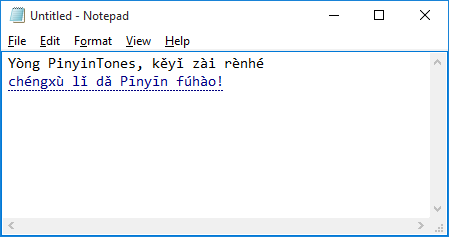
PinyinTones provides a simple way to type Pinyin tone marks into any Windows program. You do not have to copy-paste, or use macros, or memorize alternative keyboards. Best of all, you don't even have to think about which vowel the tone goes over!
Notice that the tone was automatically placed over the "a" in "fúhào."
System Requirements
PinyinTones runs on all currently supported versions of Windows on x86 and x64 computers. It has been tested on:
Windows 10
Windows 8 and 8.1
Windows 7
Windows Vista
PinyinTones does not run on:
Windows XP or earlier, which are no longer supported by Microsoft
Windows RT or Windows Phone, which run on ARM processors
How to Use on Windows 10 and Windows 8.x
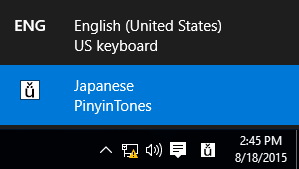
Press WindowsKey + Spacebar to bring up the input selector.
If PinyinTones is the only other input method installed, then it should now be highlighted, and you can start using it.
If you have more than two input methods, then keep pressing WindowsKey + Spacebar until PinyinTones is highlighted. Or click on the PinyinTones option.
In Windows 10 and 8.x, the input method is associated with the user session. Once you switch to PinyinTones, the setting applies to all programs you have open. This includes desktop applications, as well as Windows Store applications.
How to Use on Windows 7 and Windows Vista
PinyinTones shows up in the Language Band, which appears by default at the bottom-right of your taskbar. It registers itself as a Japanese text service (more on this later). To use PinyinTones:
Open the program you wish to type into.
Cycle through the languages by pressing Alt + LeftShift until the two-letter language code reads "JP."
Make sure the PinyinTones icon is the selected text service. The icon for PinyinTones is the character ǚ -- the "u" character, with an umlaut, with a caron (third-tone mark). Try typing that in without PinyinTones!
Type away.
In Windows 7 and Windows Vista, each program is associated with an input method. Thus, if you wish to type toned Pinyin into multiple programs, you will have to switch to PinyinTones for each program that you open.
Japanese?!
PinyinTones registers itself as a Japanese text service. This was done intentionally to avoid a
very annoying bug in Microsoft Word and Outlook. If PinyinTones registers itself as a Chinese text service, then toned Pinyin characters in Word will appear in a different font from the surrounding text. By registering itself as a Japanese text service, PinyinTones does not trigger this behavior.